 Physix Frontier
Your First AI Workspace Starts with a Class Schedule

The day before yesterday, you learned how to install software and write instructions. Today, build your first result—a Class Schedule Workbench.
Why start with a class schedule? Because it's the simplest; you can build it in 5 steps, and you'll use it every day. Unlike those complex workbenches that require over ten steps, where beginners give up halfway through.
A class schedule is different. You can use it the same day you build it. Tomorrow, when you open it, you'll see what classes you have today, which assignments are due, and how many days until exams.
This "instantly usable" positive feedback is key to sticking with learning this.
■ What is a Workbench? Why not just use a chat box?
You might ask: Can't I just ask the AI in the chat box, "What classes do I have today?" Why bother building a workbench?
You can. But every time, you have to restate everything: who you are, what your schedule is, and what format you want. After saying it three times, you'll get annoyed.
A workbench saves this fixed information. You open it and it's ready to use, no need to repeat descriptions every time.
Think of it this way: A chat box is like filling out your address, phone number, and taste preferences every time you order takeout. A workbench is saving all that info so you can place an order with one click.
A Class Schedule Workbench lets you see your daily classes, pending assignments, and exam countdowns immediately upon opening. No typing required; everything displays automatically.
■ Build a Class Schedule Workbench in Five Steps
I've written each step below in detail. Follow along, and you'll definitely finish within 15 minutes.
Step 1: Create a New Workbench
Click the "Workbench" icon in the left navigation bar, click "New," and give it a name—"My Class Schedule."
Name it whatever you like, but I suggest choosing a name that instantly tells you what it is. Later, you might build several workbenches, and messy names will make them hard to find.
Step 2: Tell It What You Want
In the input box, write: "Help me create a class schedule workbench. I am a college student with classes Monday through Friday. It needs to include: Course Name, Class Time, Classroom Location, and Instructor. Present it in table format."
Note: This uses the formula learned yesterday—Identity (college student) + Task (create class schedule) + Requirements (include 4 fields, table format).
After sending, the AI will generate a table framework. Check if the fields are correct; if not, ask it to fix them.
Step 3: Add Course Information
Fill in your actual course details. You can type directly or send a screenshot of your school schedule for it to recognize.
I recommend using screenshots—take a screenshot of the academic system's schedule, send it to the AI, and let it extract the data automatically. This is 10x faster than manual typing.
If the AI makes recognition errors (e.g., recognizing "Advanced Mathematics" as "Adv Math"), simply edit the table manually. The AI won't overwrite your manual edits.
Step 4: Add Features—Assignment Reminders
Append in the chat: "Add an assignment reminder area next to the schedule, sorted by deadline, marking urgency levels (Urgent/Normal/Low Priority)."
The AI will add a new section to the workbench. Enter your assignment info, and it will automatically sort by deadline.
Pro tip: Whenever there's a new assignment, just say in the chat, "Added a new assignment for Advanced Math, due next Friday," and the AI will update the reminder section automatically.
Step 5: Add More—Exam Countdown
Append again: "Add an exam countdown area at the bottom, showing how many days until each final exam, highlighting anything within 7 days in red."
Once this step is done, your Class Schedule Workbench has three sections: Schedule, Assignment Reminders, and Exam Countdown.
Take a glance every day: see today's classes, upcoming assignment deadlines, and approaching exams—all at a glance.
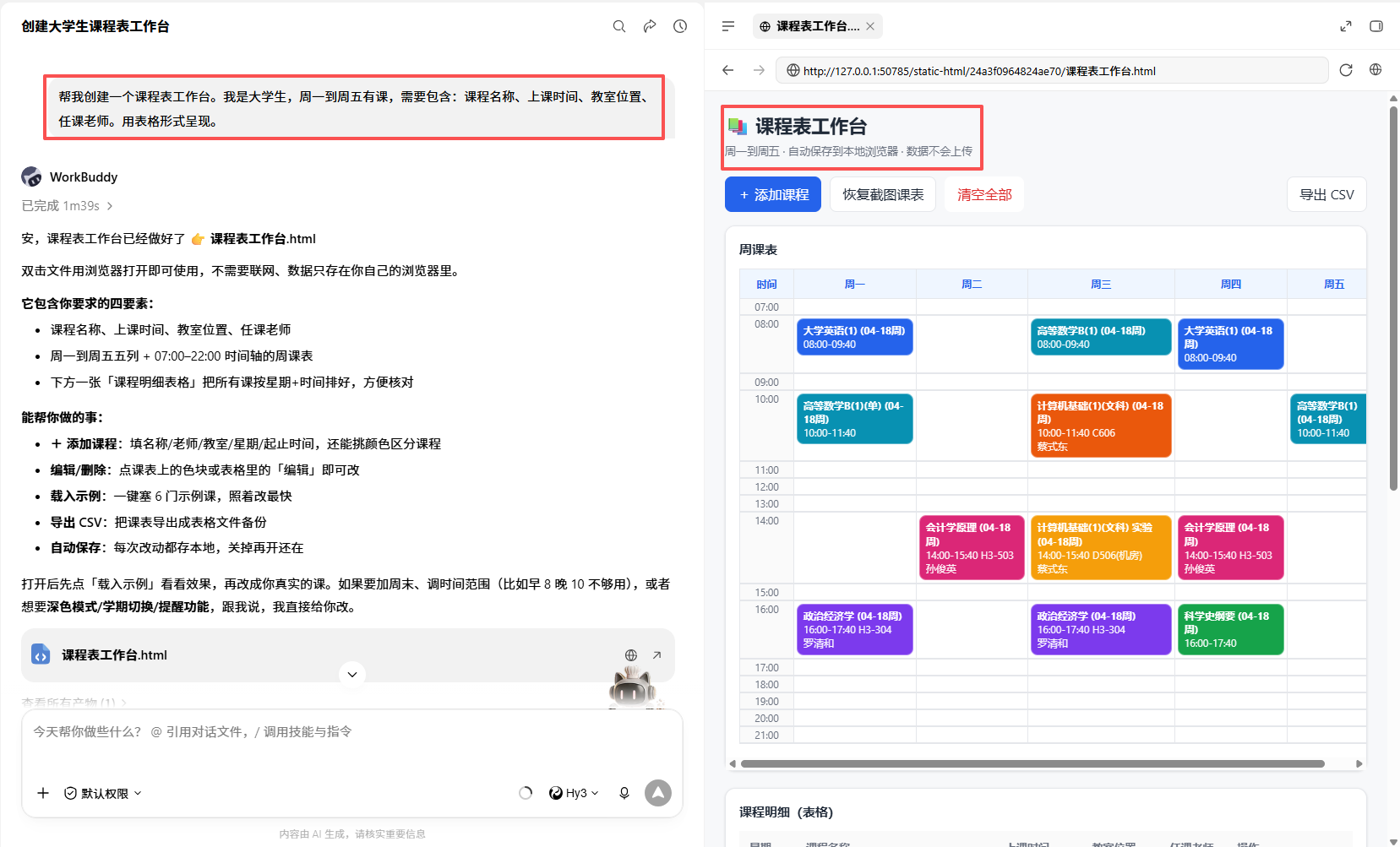
Figure 1 | Completed Class Schedule Workbench Effect

Figure 2 | Operation for Adding Assignment Reminder Feature
■ How to Use It After Building? Daily Usage Guide
Building it isn't the end; it's the beginning. The more you use the workbench, the smoother it gets, but you need to develop the habit of spending 1 minute updating it daily.
Every morning, open the workbench and spend 1 minute telling it about new assignments or changes for the day. For example, "Today's Advanced Math class is canceled" or "English class has a new assignment due next Wednesday."
The AI will automatically update reminders and countdowns. You don't need to manually edit the table—just say a sentence in the chat.
Common Questions:
- Lost workbench data? Check if you're logged into the same account. Cross-device sync requires consistent accounts; switching accounts means you won't see previous workbenches.
- AI misunderstood course info? Edit the table manually. The AI won't overwrite your manual edits, so feel free to correct it.
- Can't open on mobile? The workbench feature currently has compatibility issues on mobile devices; PC usage is recommended. You can view chat history on mobile, but the workbench page may not display correctly.
- Want more features? Append requests in the chat anytime. For example, "Add a club activity reminder" or "Add a schedule export function." The workbench is dynamic and can be iterated upon anytime.
- Made a mistake and want to restart? No need to delete and rebuild. Just say in the chat, "Clear the schedule and refill," or "Delete the assignment reminder section," and the AI will adjust according to your instructions.
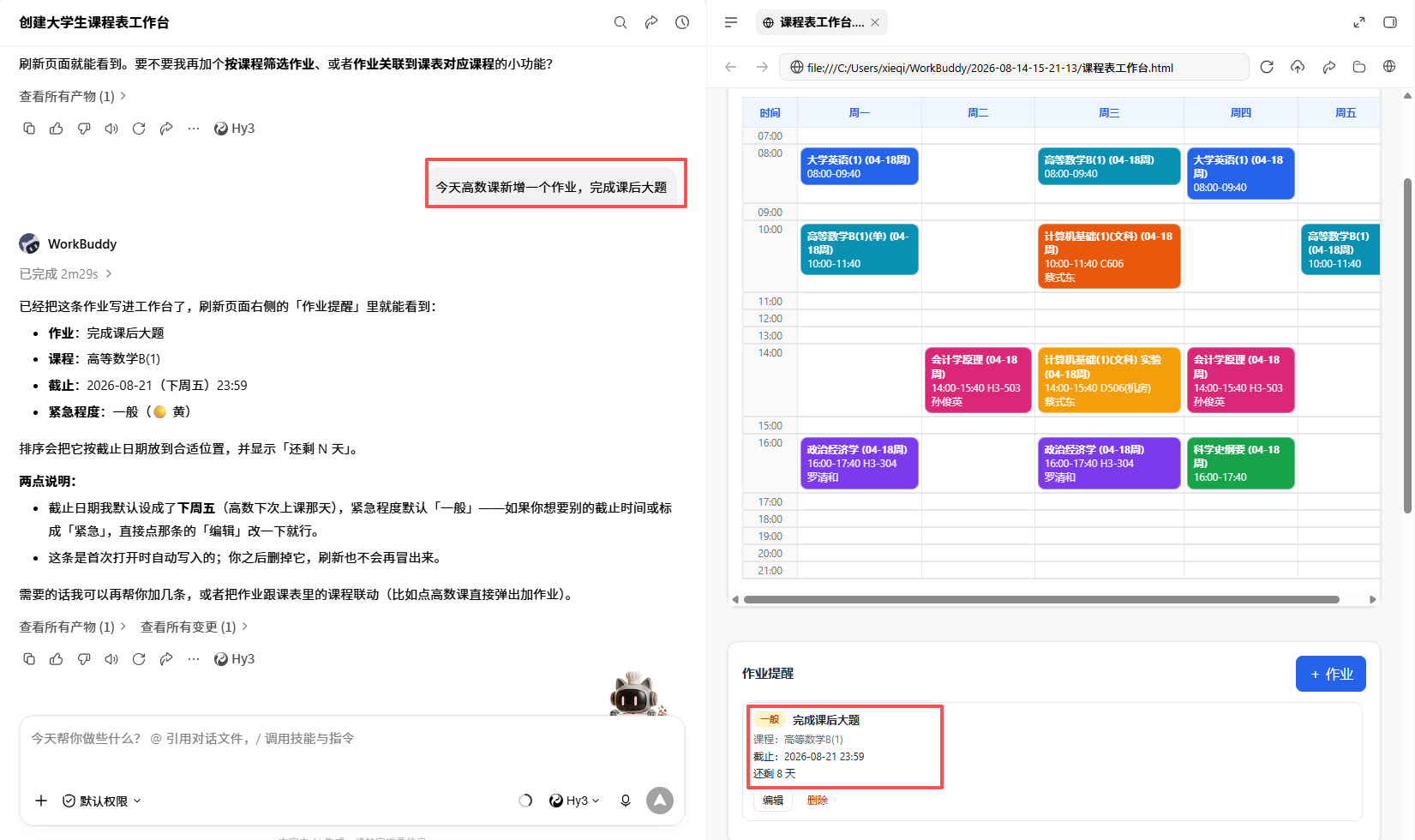
Figure 3 | Daily Workbench Update Operation
■ Advanced Preview
Today you built a class schedule. This is your first workbench, but it won't be your last.
Tomorrow you can add note organization—automatically categorizing notes from each class under the corresponding course. The day after, you can add a review plan—linking exam countdowns with review progress. The workbench will become easier to use over time.
You've now completed the basic three steps: understanding the interface, writing instructions, and building a workbench. Next is continuously adding features and optimizing, letting the AI truly do the work for you.

