 Physix Frontier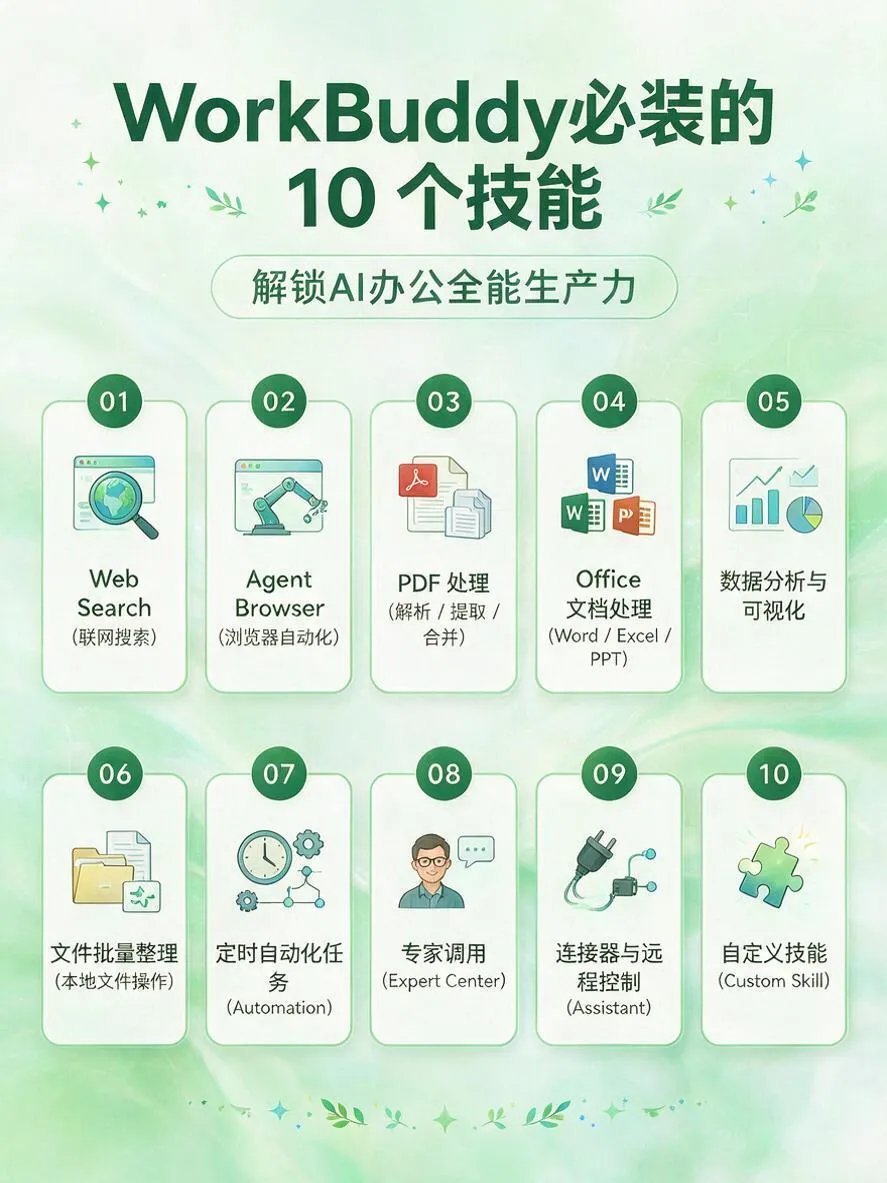
Stop making AI guess your intent: How I fixed messy design docs with WorkBuddy

I used to think the stronger the AI, the better, until WorkBuddy made me throw my mouse in frustration.
Being precise when sending requirements to others applies to AI too—I spent three days realizing this.
It’s not that AI is dumb; it’s that I didn’t tell it how to do it.
My environment is macOS + Figma as the main tool, with the team collaborating via Feishu (Lark). My three biggest annoyances were: organizing design asset naming, writing weekly reports, and format explosions when passing spreadsheets across departments.
Last week, I built an automation workflow with WorkBuddy and cleared these issues in one go. Here are the specific steps.
Problem: Design Docs Are Like Junkyards, Everyone Throws Stuff In
I created a component library for the team, but every time someone modified it, file naming became chaotic.
button_v2_final.psd, Icon_Final_UseThisOne_1122.sketch—names like this raise my blood pressure.
Worse, I had to manually count usage stats for all design files weekly and send tables to product managers.
Doing it by hand took two hours each time, and I often missed things.
Solution: Build an Auto-Cleanup Pipeline Using WorkBuddy’s "Skills"
WorkBuddy’s Skill system is key. I selected "Batch File Processing" and "Table Generation" skills to configure an automated task.
Step 1: Configure Trigger Conditions
Open WorkBuddy → New Skill → Select "File Monitor."
Set monitored folder: /Design/Assets/ComponentLibrary
Trigger event: File creation or renaming.
Key parameter: Match mode set to "Regex." I wrote a rule to match standard naming format ComponentName_Status_Version_Date; non-matching files are marked "To Be Organized."
Step 2: Define Auto-Cleanup Logic
Add a "Conditional Judgment" in the skill:
- If filename doesn’t match rule → Pop up dialog asking for correct name (or select from preset template).
- If matches rule → Auto-extract component name, status, version, write to an Excel log table.
I used JSON for the template format, pasted below:
{
  "source": "FileMonitor",
  "action": "ExtractInfo",
  "fields": ["ComponentName", "Status", "Version", "Date", "FilePath"],
  "output": "DesignAssetLog.xlsx"
}
Step 3: Set Scheduled Summaries
Create another skill "Weekly Report Generator," triggering every Friday at 5 PM. It reads the log table, groups by component name to count quantities, and outputs a table.
Table includes: Component Name, New Count, Modification Count, Last Modified By.
I send this table directly as a Feishu doc to the PM, skipping manual organization.
Pitfall Avoidance: Don’t Make WorkBuddy Do Too Much at Once
Initially, I tried cramming all tasks (file cleanup, naming, weekly reports, even auto-backup) into one skill.
Result: WorkBuddy froze, outputting gibberish, with error logs everywhere.
Later, I split the big task into three small skills:
- Skill A: File Monitoring + Naming Check
- Skill B: Weekly Log Summary
- Skill C: Auto-send Feishu Doc
Each skill does one thing, making it much more stable.
Also, watch escape characters in regex matching. Windows and macOS path slashes differ—I fell into that trap.
Result: Saved an Afternoon, Could Leave Early
After configuration, the first week ran smoothly. It auto-organized 47 design files, found 12 with irregular naming, and corrected them same-day.
Weekly report generation went from two hours to 30 seconds. The PM said, "This table is cleaner than what I’d make myself."
Best part: I no longer have to stare at folders alone.
Trend Prediction: In the Next Six Months, Core of AI Office Isn’t "Generation," But "Orchestration"
Current AI tools compete on generative ability, but what truly lands is orchestration capability like WorkBuddy’s—chaining "Task Decomposition → Tool Invocation → Action Execution."
People who can define rules are worth more than those who can write prompts.
If you’re still using AI as a chat box, try the Skill system—turning instructions into automated pipelines beats writing ten thousand prompts.