 Physix Frontier
What's the Difference Between a Skill and a Chat Interface? Explained with One Example
For the past three days, you've been doing manual work in the chat interface. It works, but it's exhausting.
Today, I'm introducing Skills—install once, and let AI automatically run the entire workflow from now on. Here is one example to clearly explain the difference between Skills and chat interfaces.
I. The Same Task: Chat Interface vs. Skill
Scenario: You need to organize class notes into a knowledge tree.
Using the Chat Interface:
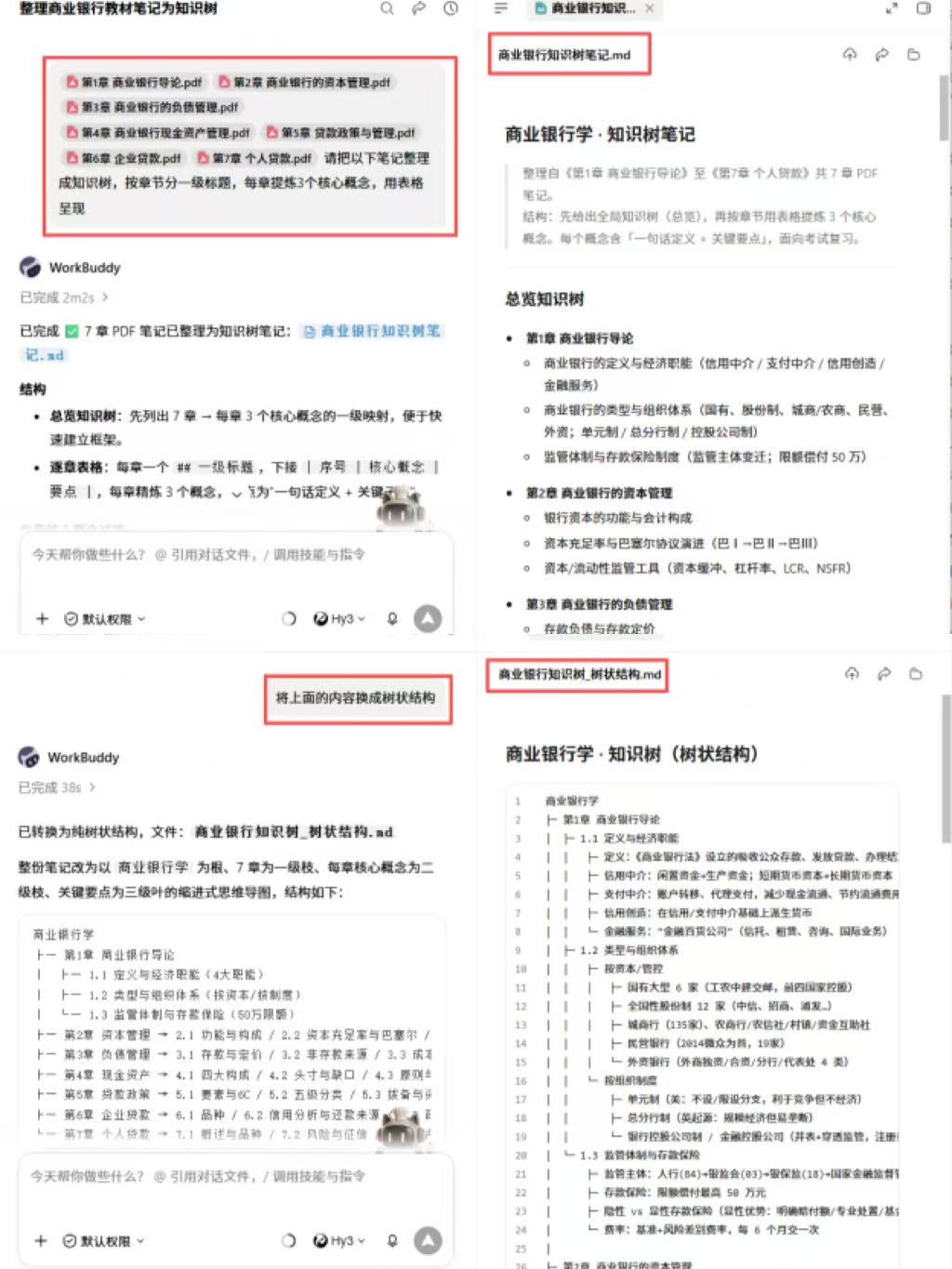
Step 1: Type instructions to the AI: "Please organize the following notes into a knowledge tree, use chapter titles as level-1 headings, extract 3 core concepts per chapter, and present them in a table format."
Step 2: Paste the note content.
Step 3: The AI gives a result, but you feel the format is wrong, so you add: "Change it to a tree structure."
Step 4: The AI regenerates it, and you copy it into your own document.
Step 5: Next time you organize another set of notes, repeat all four steps above.
The problem is: You have to repeat the same instructions every time. After saying it five times, you'll get annoyed.
Using a Skill:
Step 1: Install a "Note Organization" Skill (a one-time operation; no need to reinstall later).
Step 2: Open the Skill and paste the note content.
Step 3: It automatically outputs the knowledge tree, formatted exactly according to your preset rules.
That's it. Just three steps. No need to retype instructions every time, no adjusting formats, no back-and-forth conversation.
A Skill solidifies your "fixed workflow." You only provide the "content," and it automatically handles the "processing."
VS
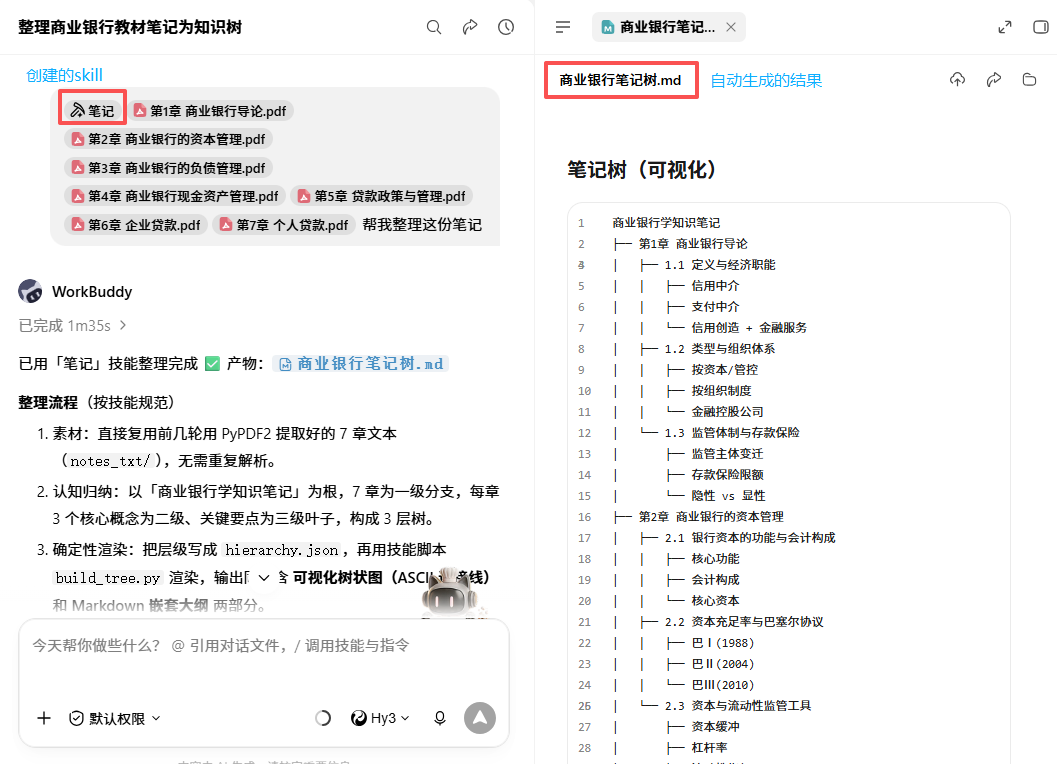
Figure 1 | Comparison of Operation Steps: Chat Interface vs. Skill
II. Core Advantages of Skills
From the comparison above, you can see three core advantages of Skills:
- Automation: No need to type instructions every time. The Skill has built-in processing logic; you give it content, and it gives you results. Steps like "telling the AI what format to use" or "adjusting the output method" are completely skipped.
- Reusability: Install once, use forever. Use it today for organizing notes, tomorrow for courseware, and the day after for literature reviews. No need to describe requirements from scratch each time.
- Standardization: The output format is consistent every time. The issue with chat interfaces is that the same instruction might yield different formats from the AI each time. A Skill won't do this because its processing logic is fixed, ensuring stable output.
In summary: Chat interfaces are suitable for one-off, personalized tasks, while Skills are ideal for repetitive tasks with fixed workflows.
III. Step-by-Step Guide to Installing Your First Skill
Step 1: Find the Skill Entry Point
Click the third icon in the left navigation bar labeled "Skill." If it's empty when you first open it, don't panic; I'll show you how to install one below.
Step 2: Browse the Skill Store
On the Skill page, click "Browse" or "Discover." You will see many installable Skills. Filter by category: Efficiency, Learning, Creative, etc.
Step 3: Search for Note Organization
Type "Note Organization" or "Knowledge Tree" in the search box to find the corresponding Skill. Check the ratings and installation counts, and choose one with high installs.
Step 4: Click Install
Click the "Install" button and wait a few seconds. Once installed, a new icon will appear in your Skill list.