 Physix Frontier
30 Minutes from Download to Submission: A Beginner's Full Guide to Mastering AI Tools
Here's the brutal truth. When you download an AI tool, you think, "Finally, I won't have to write assignments myself." You open it, type "Hello," it replies "Hello," and you close it.
A week later, your chat history is still stuck at "Help me write a paper" / "Sure, what topic?" You've chatted hundreds of times, but no task is actually completed. The tool isn't broken; you skipped the critical 30 minutes. In those 30 minutes, you transform a chatbot into an assistant that actually works for you. Configure it right, and you save 300 hours later. Skip it, and it remains just a fancy search bar.
This guide takes you from download to first submission in 30 minutes. Follow along on your computer—don't just read. Like swimming, watching tutorials beats doing nothing, but jumping in beats both.
Install It: Takes 3 Minutes
Download the installer from the official site (Windows/Mac supported). Windows users: Don't double-click directly. Right-click and select "Run as Administrator." Why? Many users double-click, causing skill package loading failures later. They waste time debugging, asking me, "Is it buggy?" It's not a bug; you missed a right-click.
Mac users: Double-click the DMG and drag to Applications. If "Unidentified Developer" pops up, don't panic. Go to System Settings > Privacy & Security and click "Open Anyway." This is Apple's security mechanism, not a software issue. Apple treats everyone this way.
Once installed, log in via WeChat QR code. You're in the main interface in 3 seconds. New users get credit quotas sufficient for several assignment runs. You've already surpassed 60% of users—they got stuck at "Downloaded but not installed."
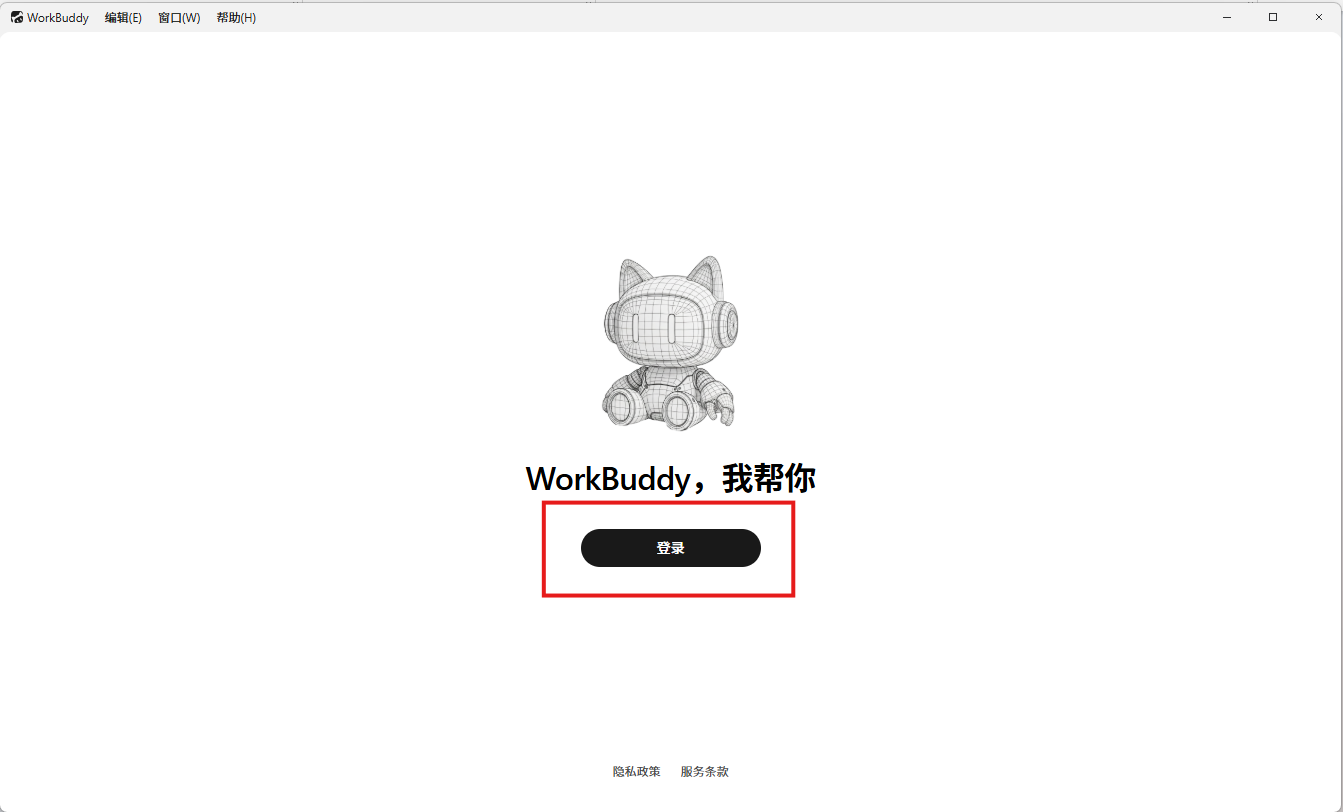
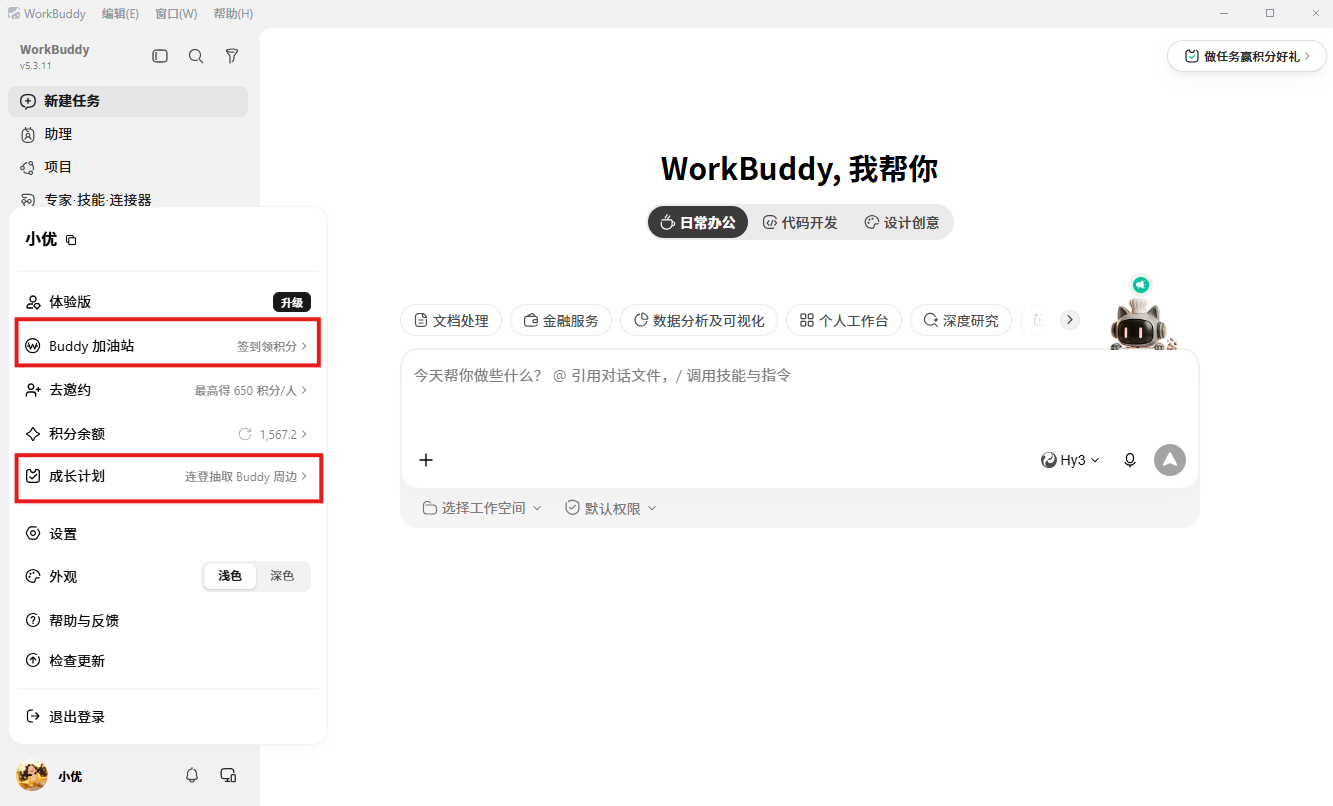
Fig 1: From download to login, done in 3 mins
Know the Interface: Avoid 80% of Pitfalls
Many jump straight in, then wonder, "Why isn't this working as expected?" Because you ignored the three most critical UI elements.
Above the chat area are three mode buttons: Ask, Think, Do. These aren't decorative; they dictate how AI assists you.
Ask: Chat only, no actions. Use for concepts/questions. Won't touch files. Like having an encyclopedia. Think: Plan first, no actions. AI lists execution plans; you approve before it acts. Good for complex tasks or unclear goals. Do: Active work mode. Receives task, breaks it down, executes, delivers results.
Beginners should default to "Think" mode. State a task; it lists steps for your approval before executing. It's like installing a "raise hand before acting" switch. Switch to "Do" only when familiar. Don't go fully autonomous immediately—you don't know its capabilities yet; giving full control is gambling.
Bottom right allows model switching. Default Hunyuan is fine for daily assignments; switch to longer-context models for large docs. Don't agonize over choices. Run with defaults first. Indecision isn't a major issue in the AI era.
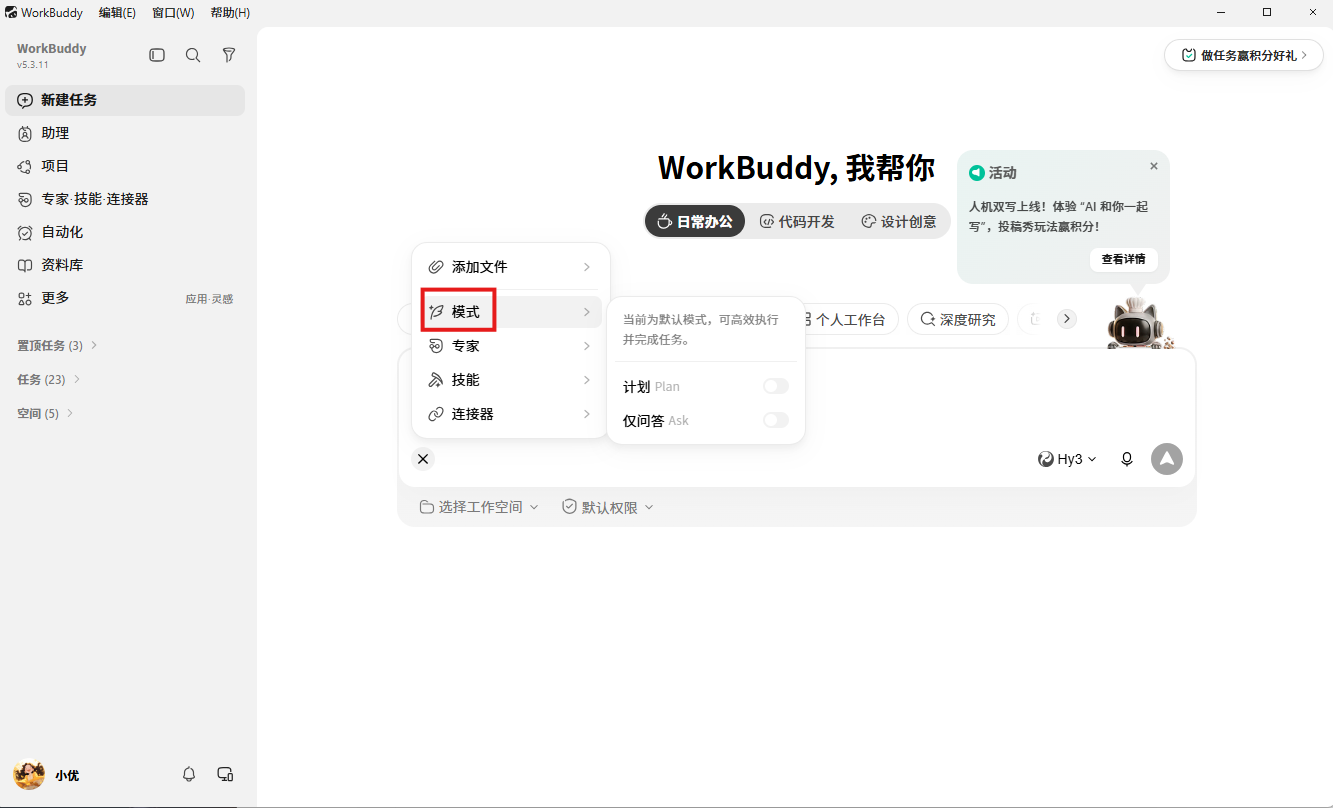
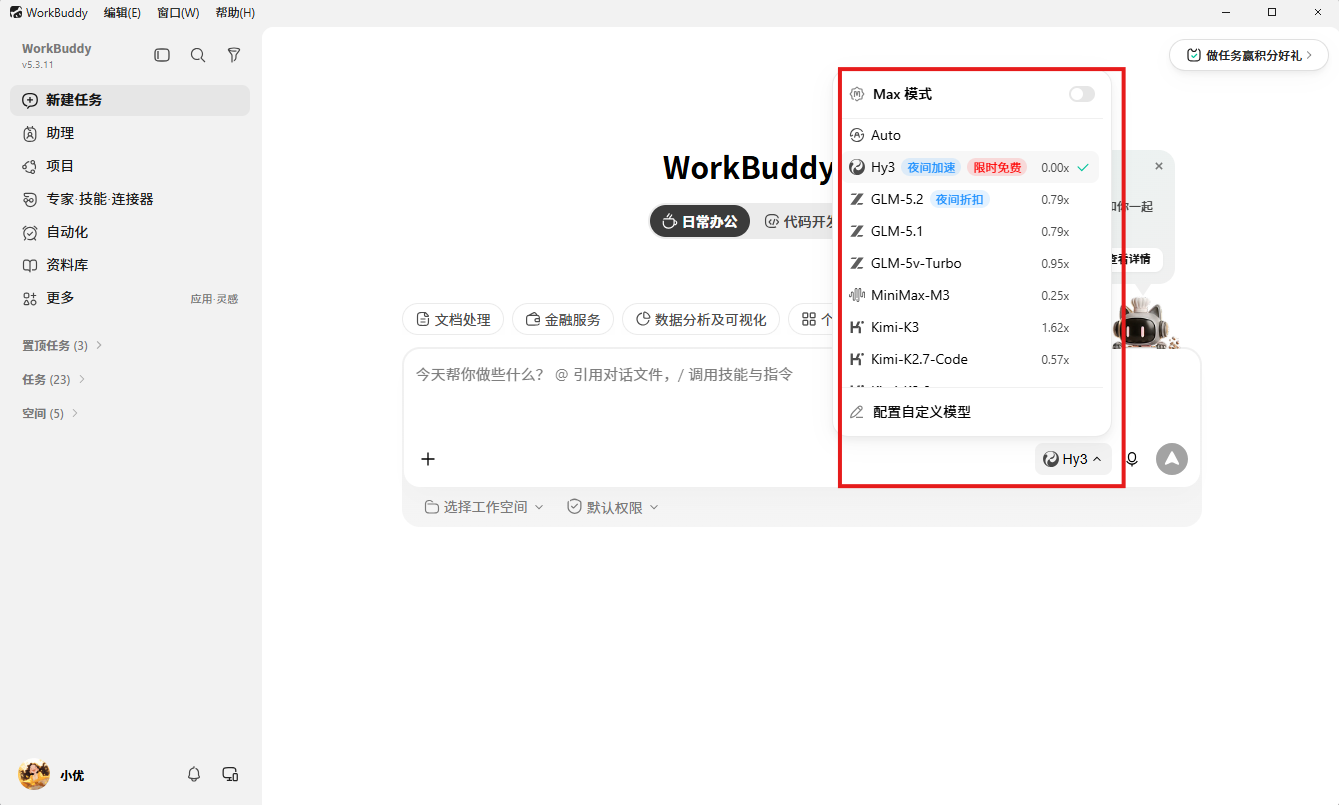
Fig 2: Three modes; beginners start with "Think"
Authorize Folders: A 2-Minute Task
First step after install isn't chatting; it's telling AI what it can access. Go to Settings > File Access Permissions and authorize common work directories.
What happens if you don't? You ask it to "organize desktop files," and it says "Access denied." You ask it to "analyze Excel," and it says "Please upload." Every step requires manual feeding, cutting efficiency in half. You hired an assistant but gave it no hands; you're operating a GUI via command line.